
📥 Where to see applications
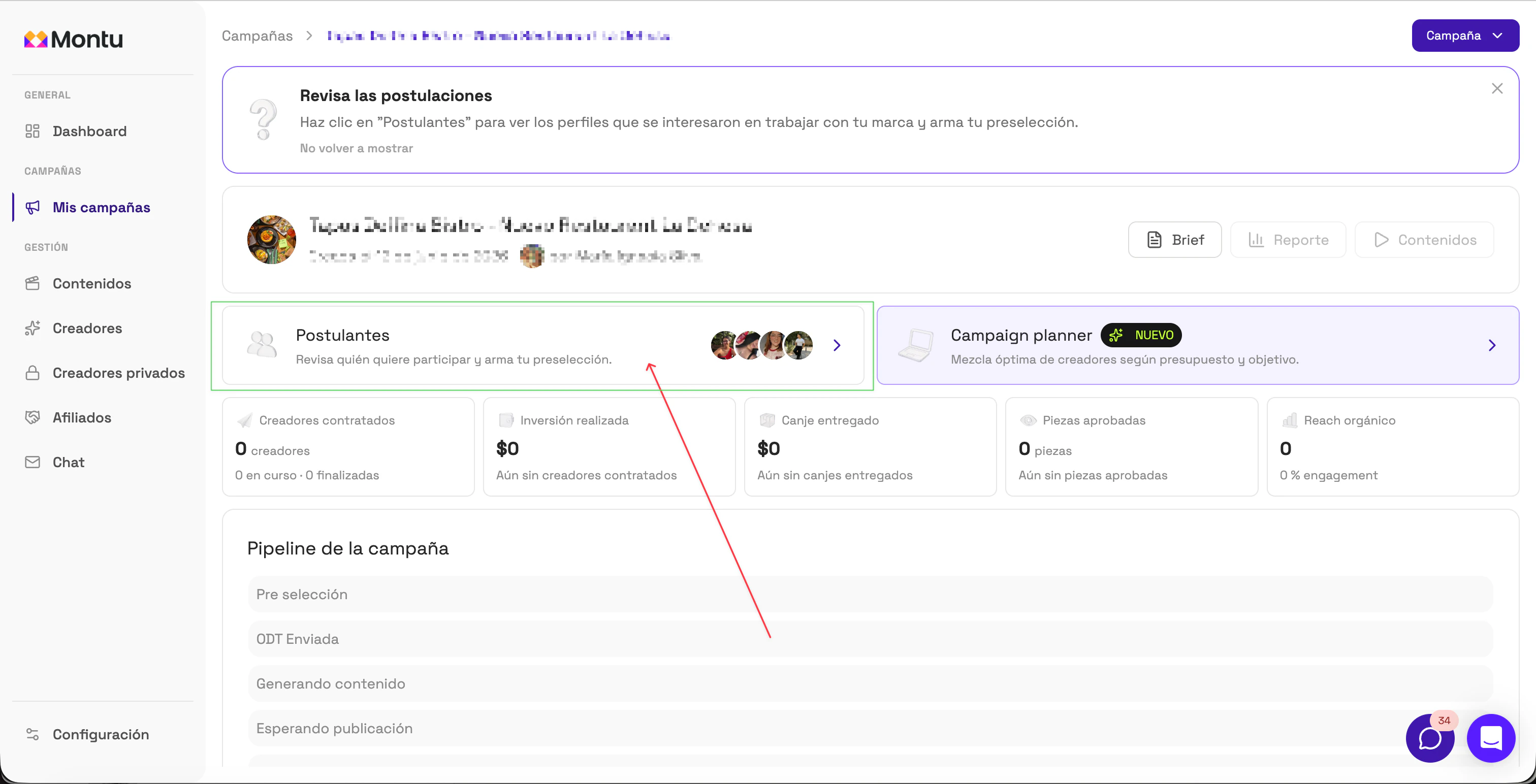
When your campaign starts receiving applications, you'll see a card called "Applicants" ("Postulantes").
👉 To see all the applications, click the card.
📊 Applicants Table View
When you click the applicants, you'll open a view that shows a summary of the most relevant details for each creator:
- Photo
- Region and District
- Instagram Followers and Reach
- TikTok Followers and Reach
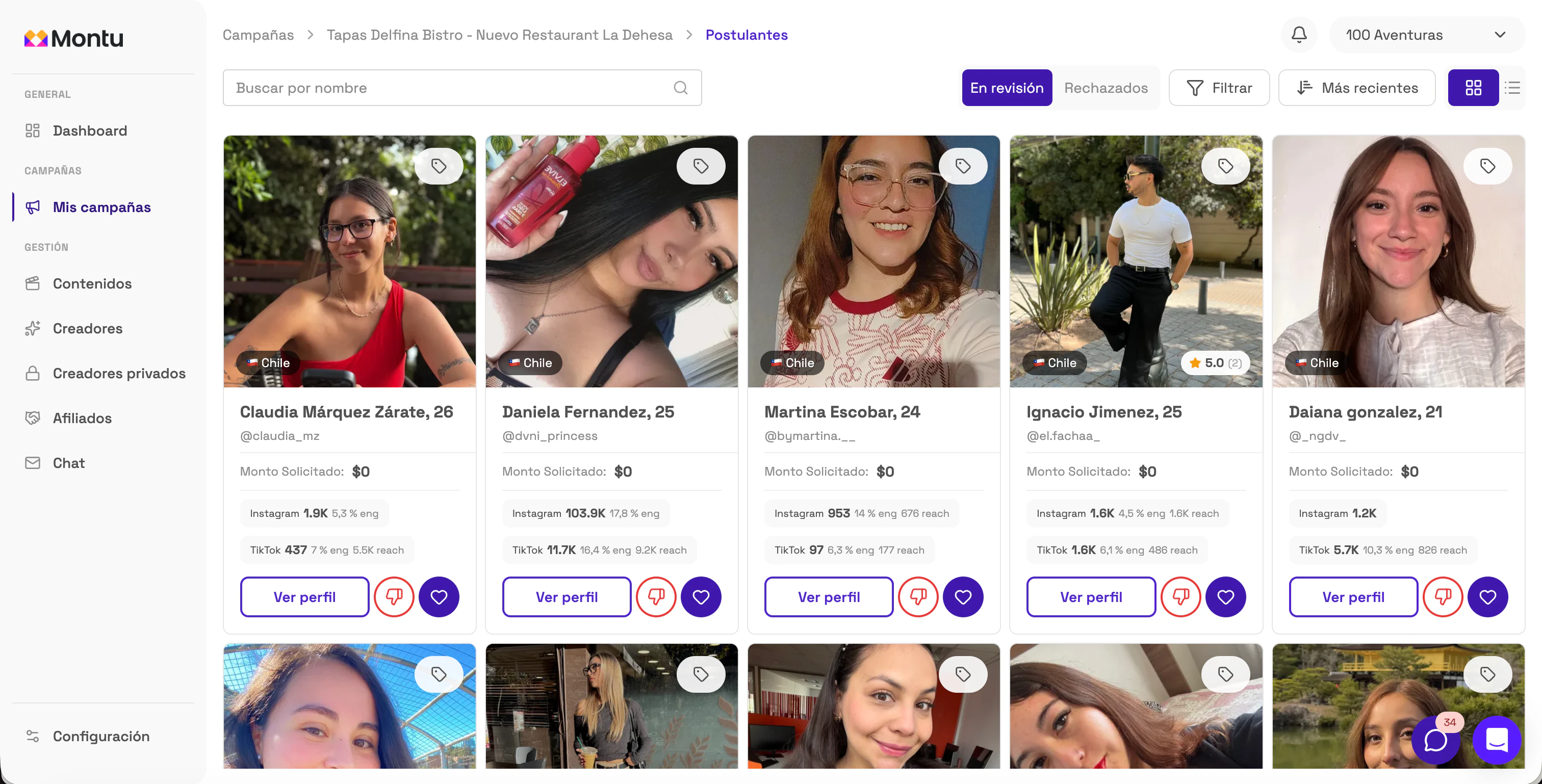
Click "View Profile" ("Ver Perfil") to see their full profile.
Click the thumbs-down to reject the application, or click the heart to add the creator to your pre-selection.
👤 Creator profile
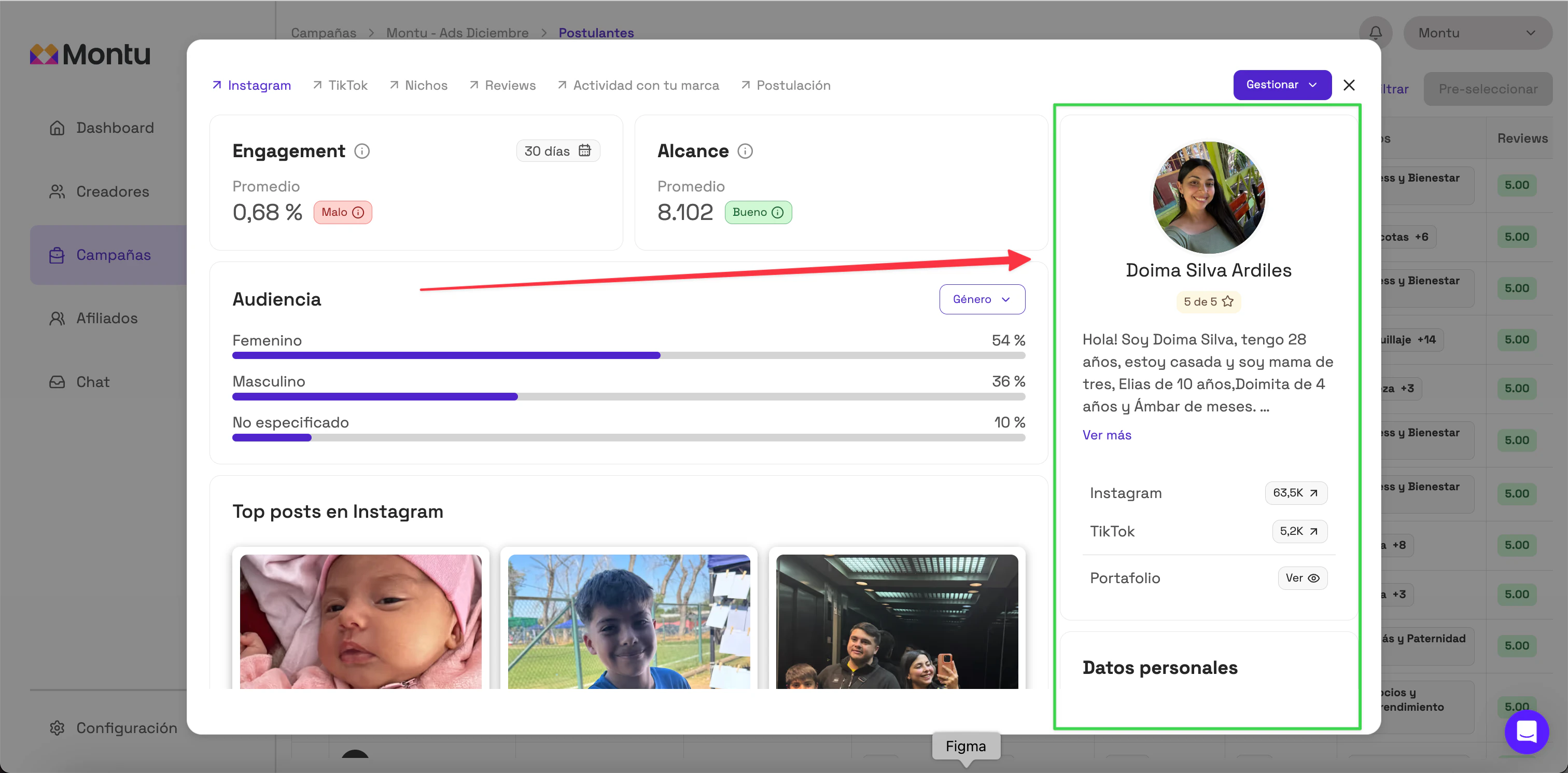
The creator profile opens in a split view:
- In the right panel you'll find general information such as:
- Name
- Average rating
- Bio
- Links to Instagram, TikTok or portfolio
- Country, District, Age, Gender and Email
🧩 Profile tabs
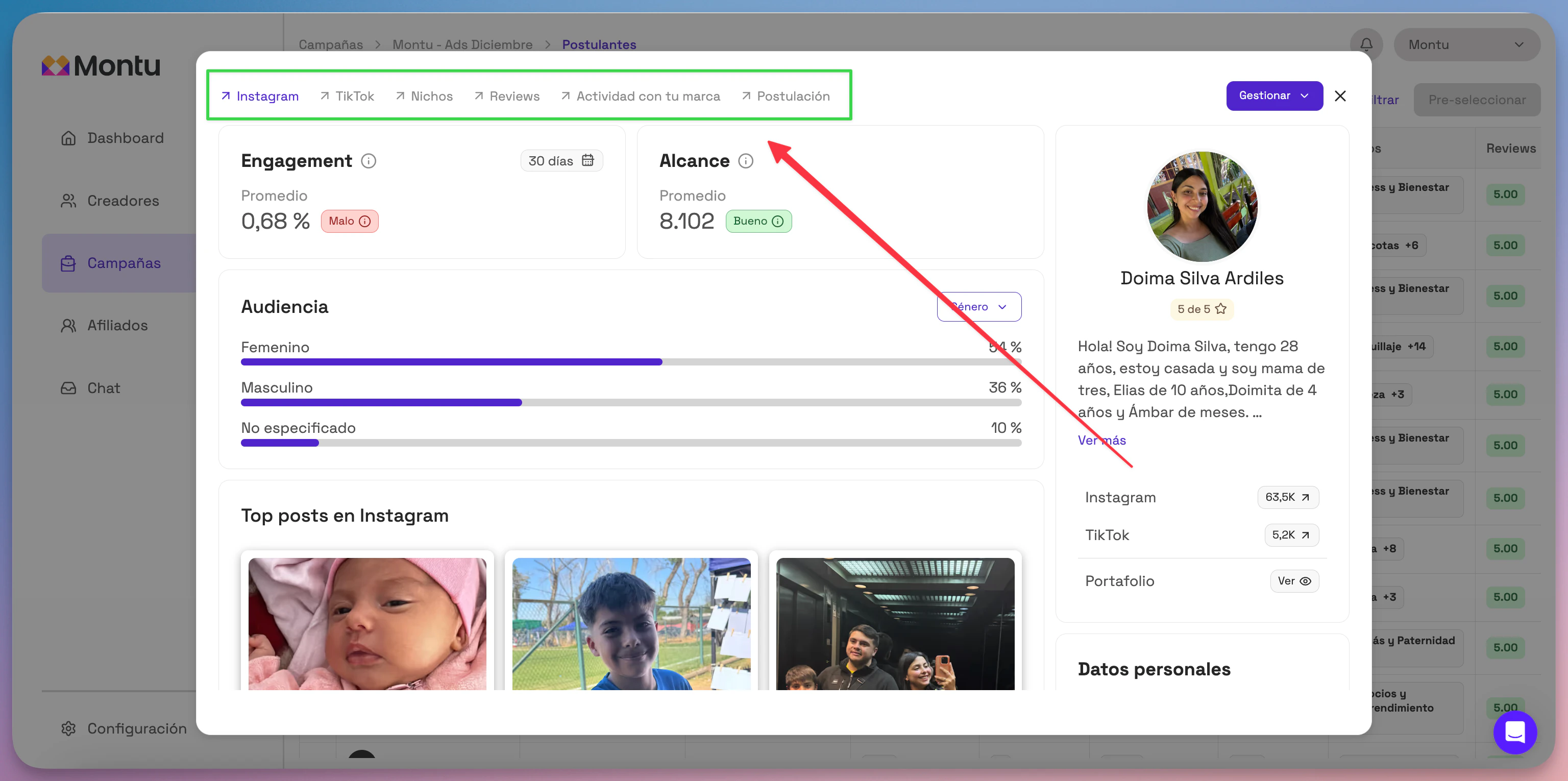
In the main panel you can browse 6 tabs that help you get to know the creator better:
1. Instagram
- Average reach per reel
- Profile engagement
- Audience by Age, Gender, Country and City
- Top posts by reach.
2. TikTok
- Average reach per video
- Average engagement per video
- Audience by Age, Gender, Country and City
- Top posts by reach
3. Niches
- The creator's previous videos, grouped by industry or topic
4. Reviews
- Comments and ratings left by other brands that have already worked with the creator
5. Activity with your brand
- History of previous collaborations between your brand and this creator
6. Application
- Summary of their application: quote (if any), answers to questions and additional comments
⚙️ Available actions
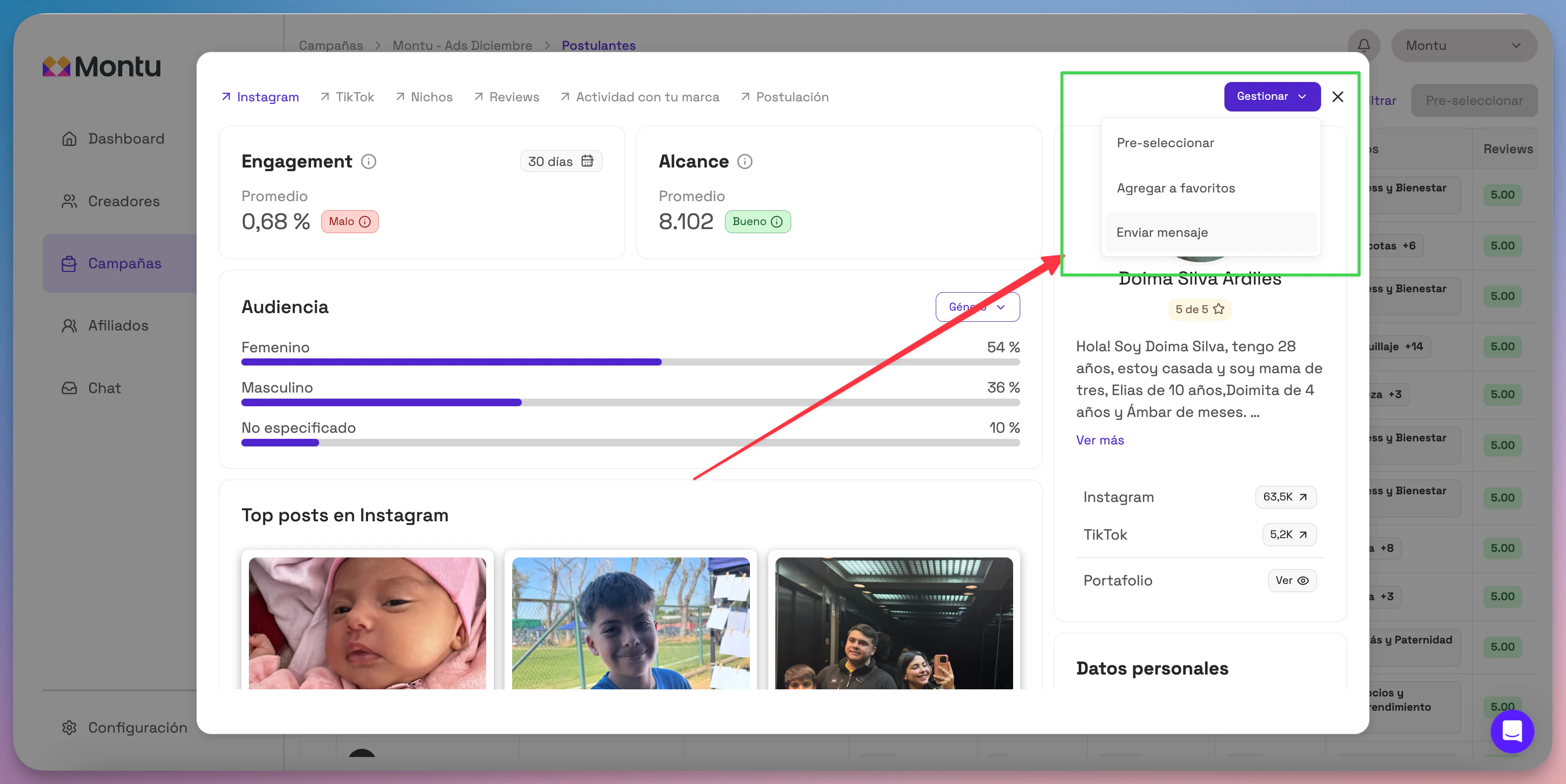
From the Manage ("Gestionar") button, you can:
- ✅ Pre-select the creator: You'll move them to the pre-selection stage of the pipeline.
- ⭐ Add to favorites: The creator will be added to the favorites list in the "Creators" ("Creadores") section.
- 💬 Send message: Start a direct conversation with the creator in the platform chat.
🔎 Tip
Use the pre-selection feature to build your shortlist before sending Work Orders.
✅ With these steps you can review all applications in an organized way, get to know each creator in depth and move toward an effective collaboration.