
How do you create an Organic campaign?
Learn how to create organic campaigns in Montu, where creators post content directly on their social media. Set up the post type, date, requirements and budget in minutes.
🧭 Step 0: Start from the dashboard
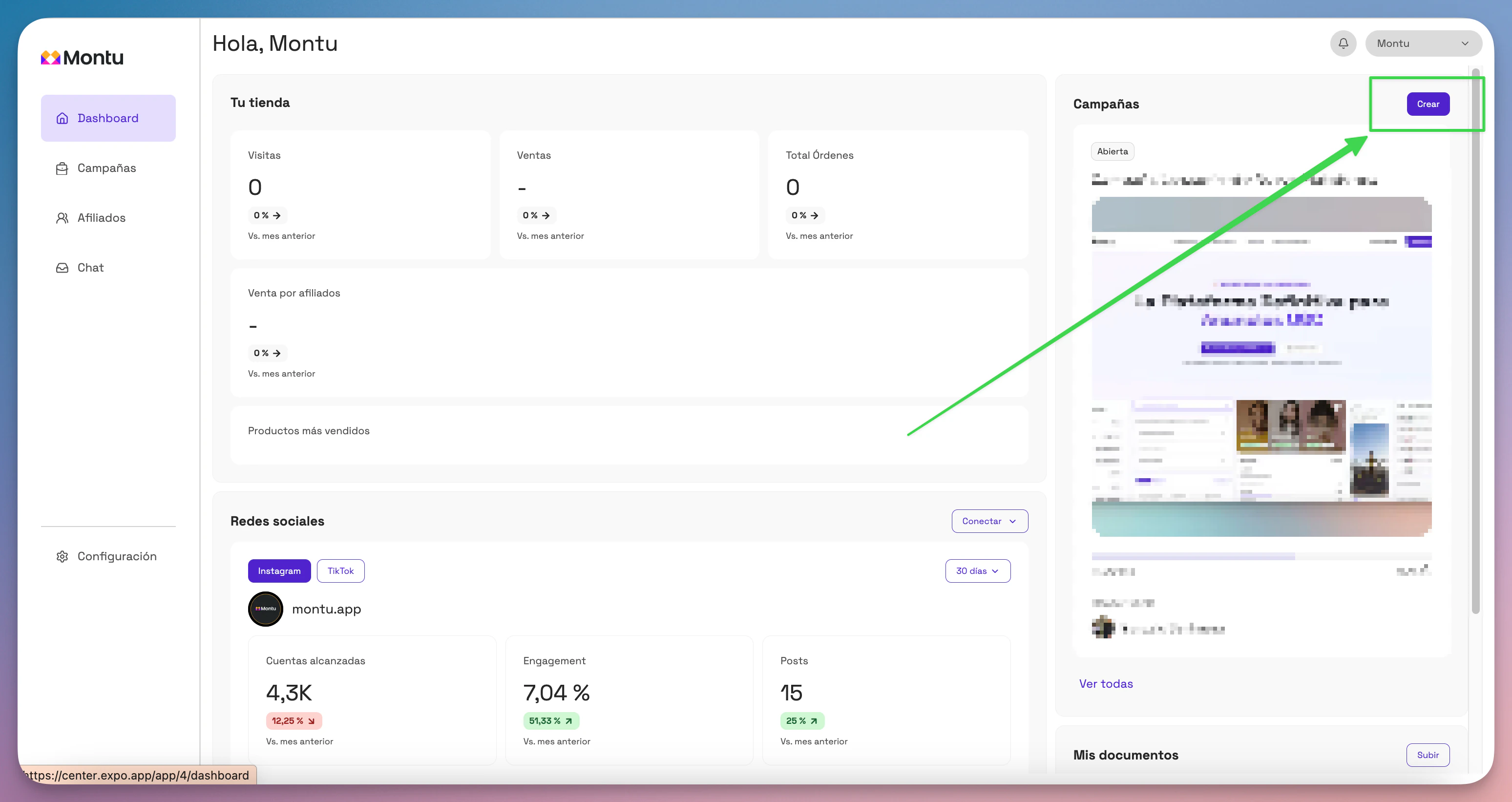
From the Main Dashboard ("Dashboard Principal"), click the Create ("Crear") button to start a new campaign.
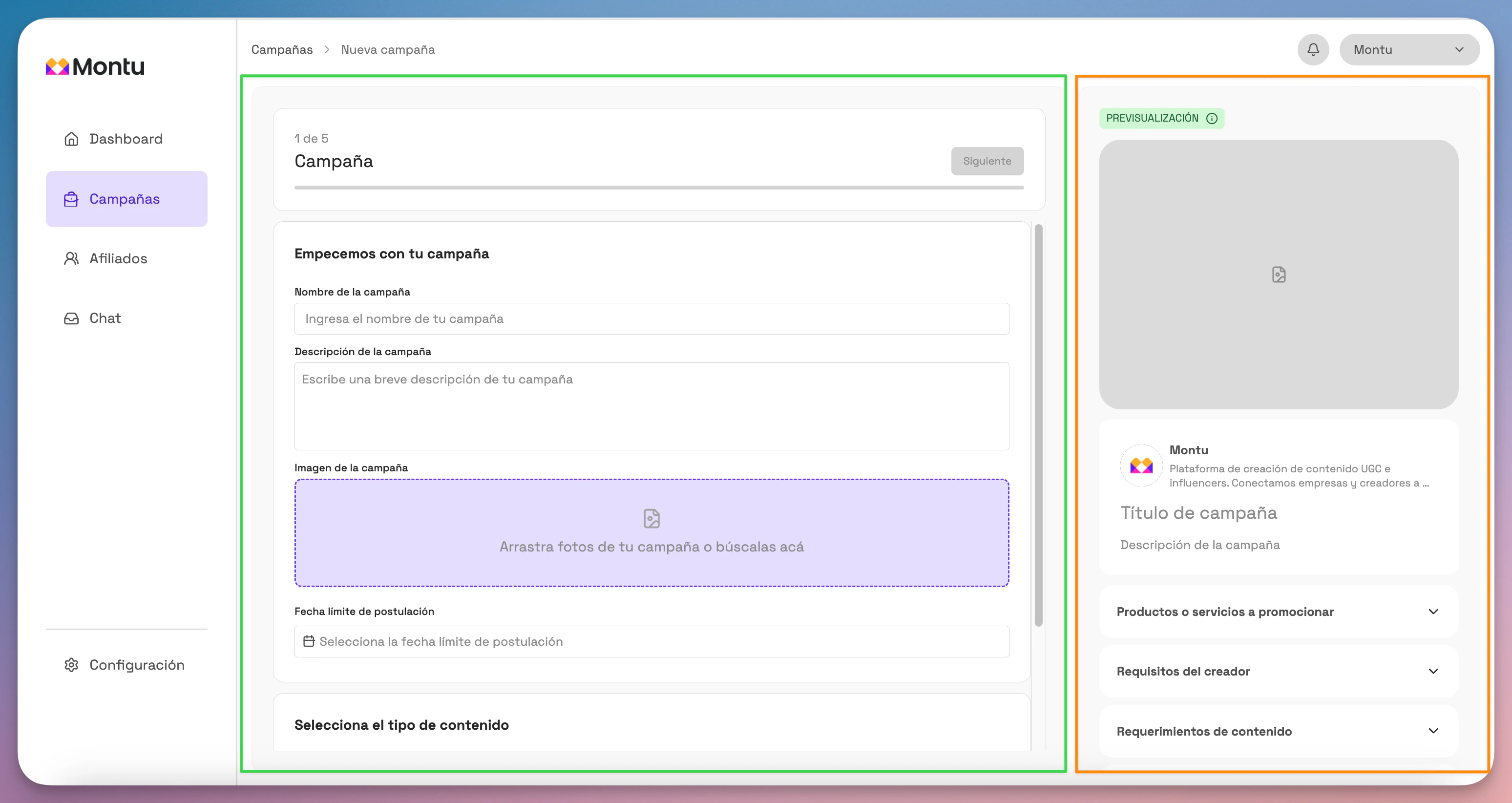
The form will open, split into two sections:
- Center panel (green rectangle): where you enter information.
- Right side panel (orange rectangle): a preview of how creators will see the campaign in the mobile app.
🧩 Step 1 of 5: General information
Fill in the following fields:
- Campaign name: Use a clear, functional title. E.g.: "Organic Lipstick Launch – Instagram Collaboration"
- Campaign description: Explain what you're looking for. E.g.: "We want you to share your makeup routine, including our new Nude Coral lipstick. Ideal if you already talk about natural or cruelty-free products."
- Reference images: Upload images of the product or examples of the type of content you expect.
- Application deadline: The last day creators can apply.
👉 Under campaign type, select Organic ("Orgánica").
Click Next ("Siguiente").
🎯 Step 2 of 5: Campaign goal
Select what you want to promote:
🛍 Product
Import products from your catalog (if you have Shopify or WooCommerce connected) or click Create product ("Crear producto") to add them manually.
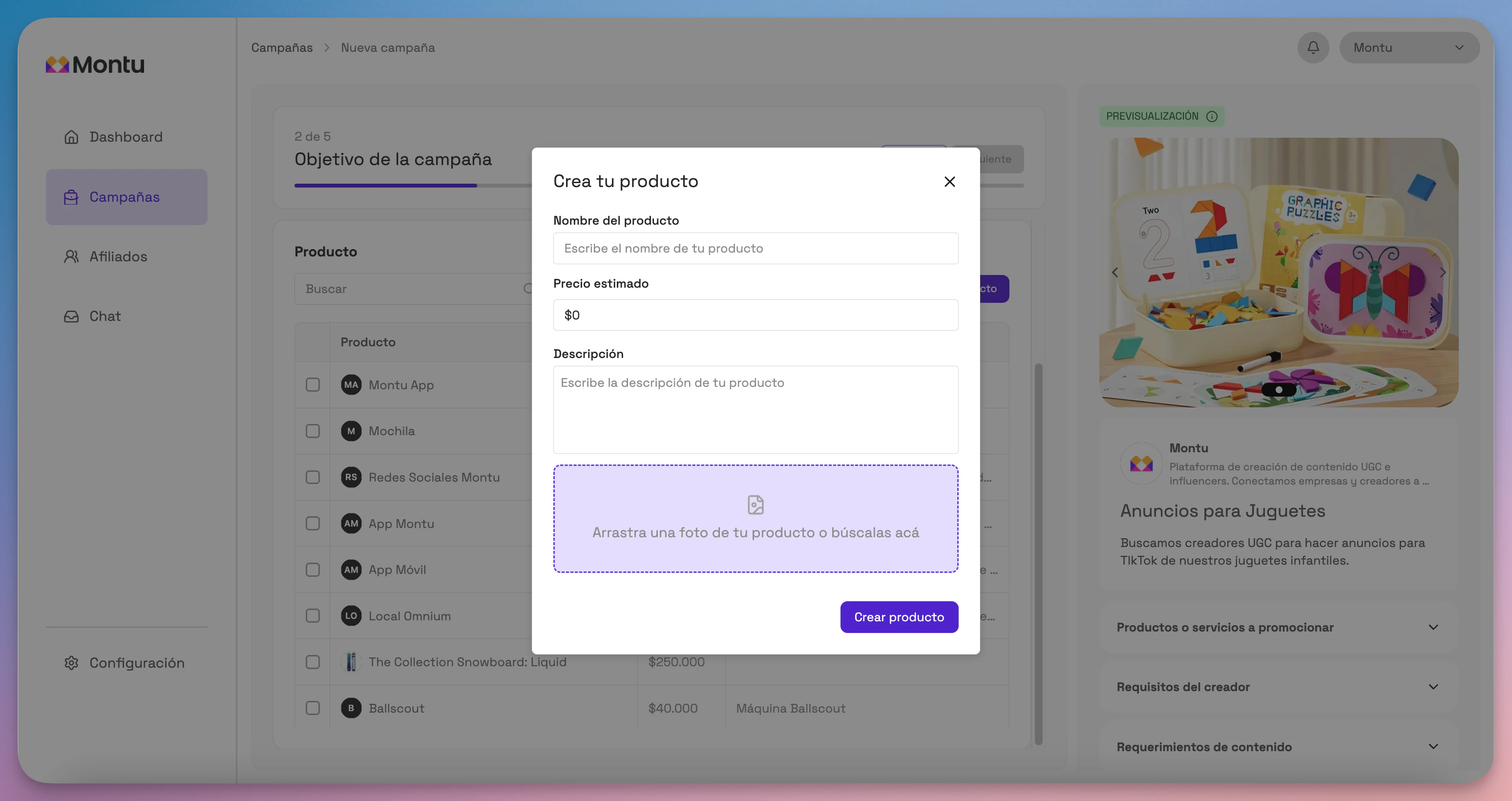
You can edit products by clicking their name.
Select the products to promote and click Next.
🧢 General brand
Ideal for branding campaigns without a focus on specific products.
📅 Event
For in-person events or special launches.
You'll need to enter:
- Event date
- Location
- Description
Click Next.
🎥 Step 3 of 5: Content
This is where you define what type of content will be posted on the creator's social media.
Click Add ("Añadir") to enter a new deliverable. You can choose from:
📱 Reel (Instagram)
Configurable options:
- ✅ With or without the right to review beforehand
- 👤 Collaborative (with the brand's account)
- 🏷 Brand mention
- #️⃣ Use of hashtags
- 🔗 Reference link (for example, to your ecommerce store or product page)
- 📅 Expected posting date
📲 Story (Instagram)
Configurable options:
- ✅ With or without the right to review
- 📅 Posting date
- 🏷 Mention or collaboration
- #️⃣ Hashtags
- 🔗 Links (swipe-up, if applicable)
🎵 TikTok video
Configurable options:
- ✅ With or without the right to review
- 📅 Posting date
- ✏️ Specific text or brief
- #️⃣ Suggested hashtags
- 🔗 Reference link
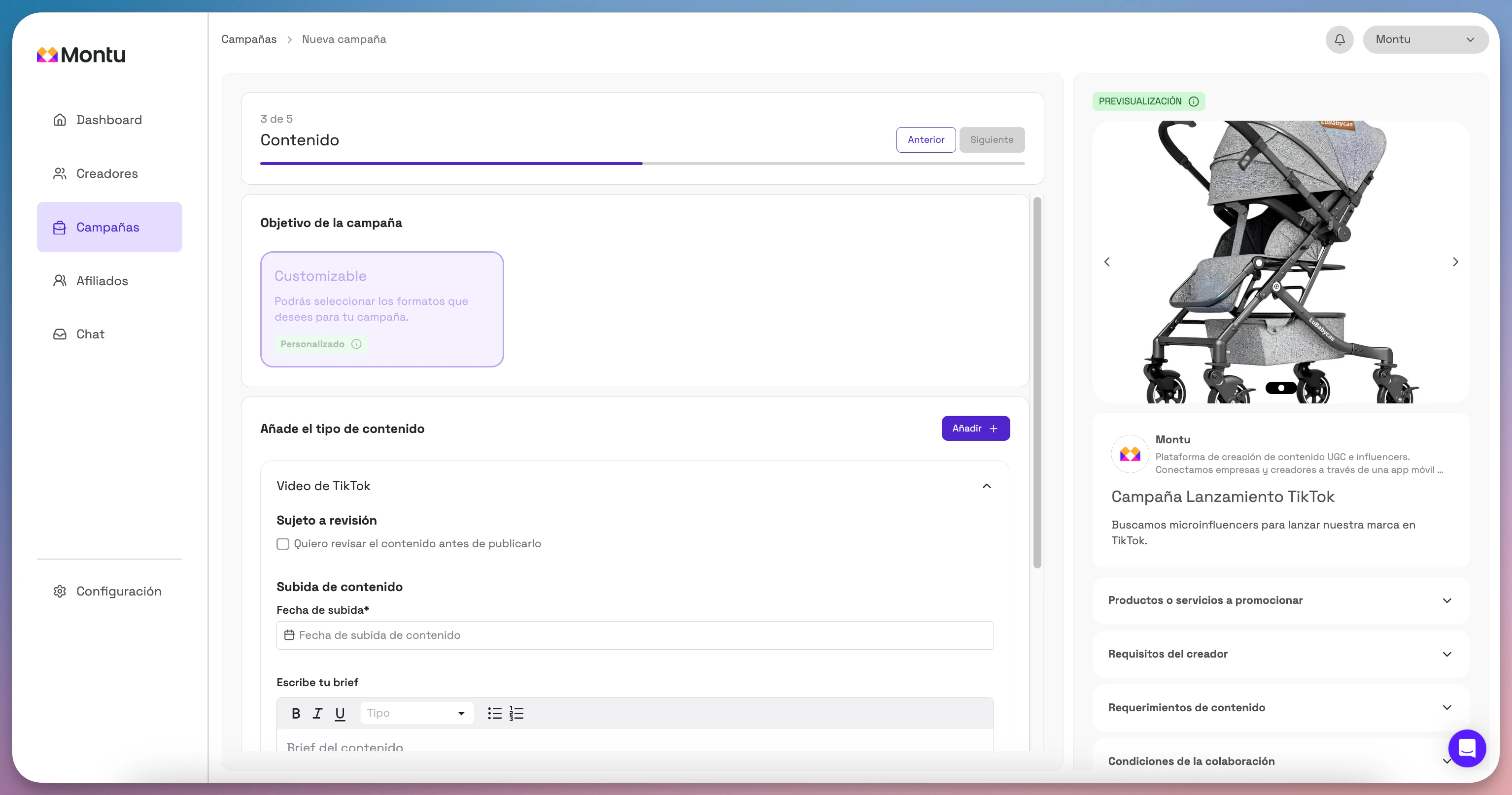
💡 You can combine several formats (e.g. Reel + Story) in the same campaign.
When you've finished adding all the requirements, click Next.
💡 What does each of these options mean?
-
Right to review:
Lets you review and approve the content before the creator posts it. Useful if you have strict brand guidelines.
-
Collaborative (Instagram):
Lets the post be published as a collaboration between the creator's account and your brand. The content appears on both profiles.
-
Brand mention:
The creator must tag your account in the post. This lets their audience discover you and also enables promotion permissions.
-
Suggested hashtags:
You can include required or suggested hashtags to tie your campaign to trends or to your brand (#BrandName, #RoutineXProduct, etc.).
-
Reference link:
You can share a link to reference content so the creator can more easily understand what you're looking for.
-
Posting date:
Exact or estimated date when the content must be published. Useful for coordinating launches, events or one-off promotions.
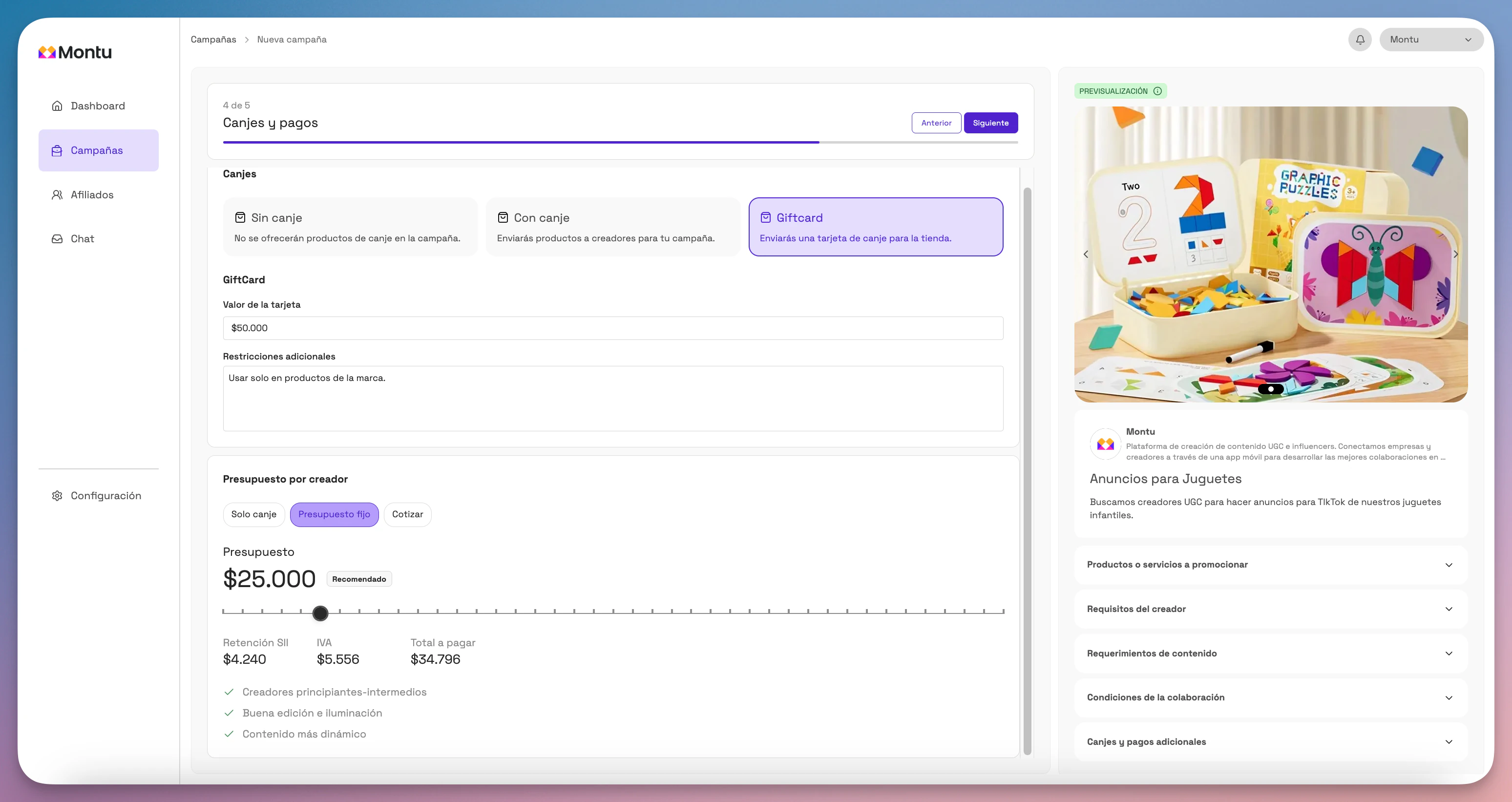
💸 Step 4 of 5: Barter and Payments
Define how creators will be compensated:
Barter
- No barter: No product is given.
- With barter: Select the product to ship from your catalog.
- Gift card: Enter the amount and conditions. Your brand is responsible for sending it.
Budget
- Barter only: There's no cash payment.
- Fixed budget: You pay a fixed amount per post.
- Request a quote: Each creator sends a price proposal.
Click Next.
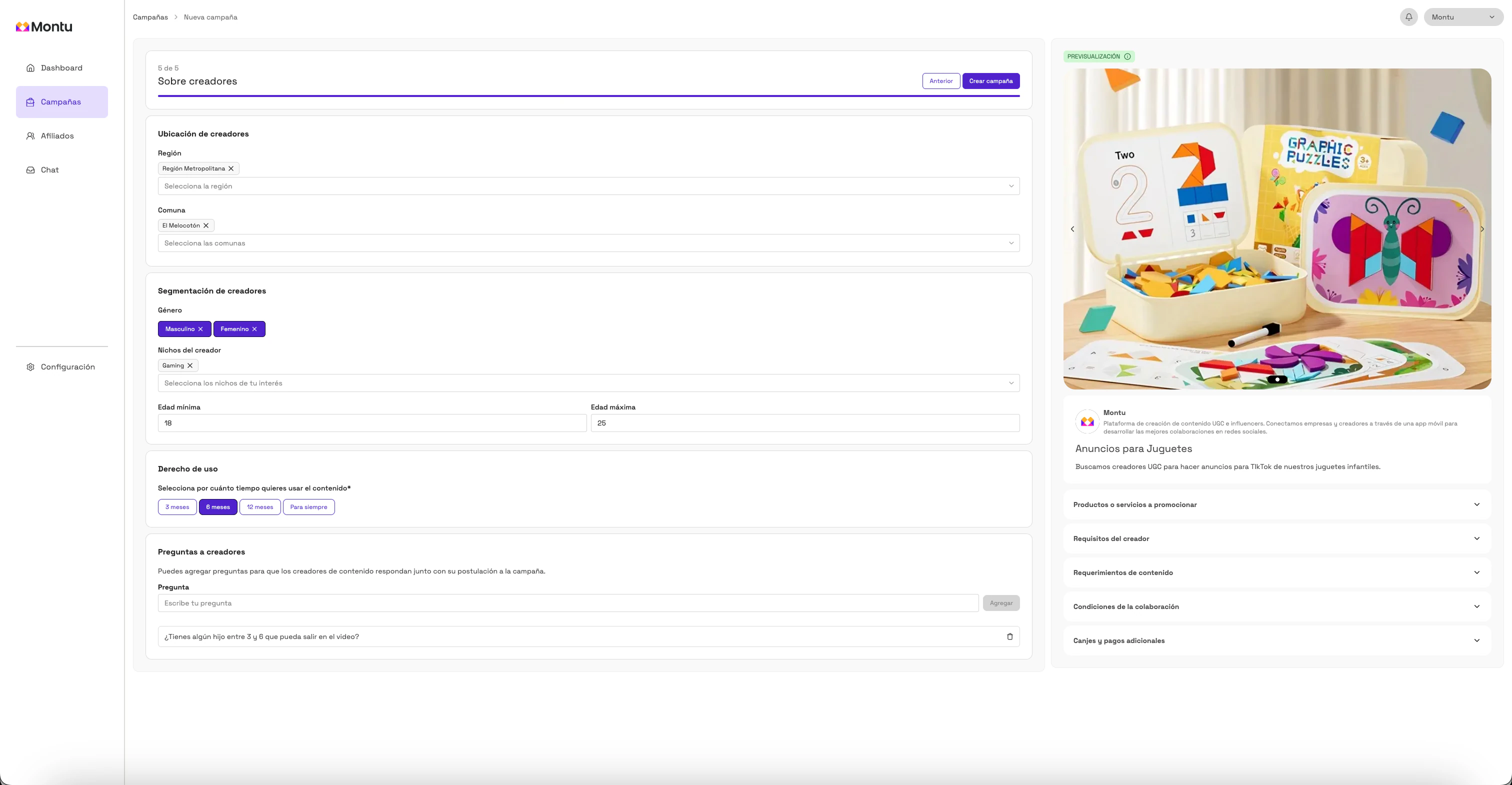
👥 Step 5 of 5: About creators
Define the ideal creator profile for this campaign:
- Location: regions and districts
- Minimum and maximum age
- Gender
- Niches of interest
Content usage rights
Define how long you'll be able to reuse the content created:
- 3 months
- 6 months
- 12 months
- Forever
Questions for creators
Add extra questions if you need to check specific criteria (E.g.: Can you film outdoors?).
Click Create campaign ("Crear campaña") and confirm in the pop-up.
✅ Done! Your organic campaign will be active and visible in the Montu mobile app.
You'll start receiving applications within the next few hours.